Tuesday, 28 January 2014

No audio/video connectivity from Edge Server - TLS Negotiation

With a lot of people starting to adopt Lync 2013 the over excited System Administrator(s) are testing their abilities and trying to install/configure Lync Server them self's. I am not discouraging people from learning Lync but not in a PRODUCTION environment.

A friend and IT pro of mine was running into issues with a partially configured environment and a strange edge pool issue, where video and audio calls from external were hit and miss. I advised him to connect to each edge server individually (HOSTS file) and run traces.

What was discovered on the second edge server was quite interesting during the TLS negotiation.


It was confirmed that all the certificates were valid with the correct CN/SAN names on the edge server. It was then discovered there were over a dozen certificates in the personal store (from failed attempts) on the edge server. I asked for all unrequired certificates to be removed and the only ones left are the certificates being used.

After all the non valid certificates were removed, and the edge services restarted, VOILA video/audio issues resolved.

For anyone reading this post, and you are unclear of the path required to create valid certificates on the Edge and even on the Front-End servers I have added the Microsoft TechNet articles for the certificate requirements for both Edge and Front-End servers.

Remember, if your certificates are in need of a SAN change/re-key please delete your old certificates!

A clean environment is a healthy environment.

Certificate Requirements for Internal Servers

Certificate Requirements for External User Access


Thanks to Neal Horth for brining this odd error to my attention.


Saturday, 14 September 2013

New Blog - Office 365 Lync Online and Exchange Online

As of a few weeks ago I decided to start yet another blog on Office 365 topics. Some topics will intaily have some topics from this blog but will surround the tasks needed or information indended for Office 365.

Reasoning behind this is I have been working alot with Office 365 over the last 12 months (more then Lync Deployments) and feel I should share some deployment senerios, gotch-ya's and guids.

You can read this Office 365 blog at http://lyncmeonline.blogspot.ca/


On a side note, I will be adding more articles to this blog ( I haven't forgotten about it!!) But sadly my project focus has not been with Lync lately. So I will be making a best effort to update this blog more frequently.

Saturday, 20 July 2013

IIS ARR and Lync Server 2013 Reverse Proxy Setup

During a conversation about TMG now being discontinued I was pointed into the direction of using IIS ARR (Application Request Routing) as a reverse proxy for Lync 2013. After some quick digging the use of IIS ARR is a supported method as per the Microsoft Technet article http://technet.microsoft.com/en-us/library/gg398069.aspx.

NOTE: I have also been told by other consultants that they have configured and used IIS ARR with Lync 2010 and is fully supported. Mentioned in the "Information" section of this article  http://technet.microsoft.com/en-us/library/gg398069.aspx

The configuration of IIS ARR for Lync 2013 was very straight forward.

IIS ARR is supported on Windows Server 2008, 2008 R2 and Server 2012. For this post I will be using Server 2012.


As like TMG you will need to configure 2 Network Adapters. One will be for external communication with a default gateway to accept requests from the Internet, and the second adepter will be for communication to your Lync 2013 environment.


Also do not join your IIS ARR server to your domain


After your networking is configured, and confirmed you can browse the Internet and still ping your internal Lync 2013 environment, install IIS (Web Server) on your ARR server. Which can be done either by PowerShell or using Server Manager.

Next, Export your public Lync 2013 certificate and import it into your IIS ARR server


Next we will bind our imported certificate to port 443 in IIS.


Next we will install the Web Platform Components for downloading and installing IIS ARR


Internet Explorer will open, and click the green button on the right that says "Free Download"


Download and Install the Web Platform Installer 4.5


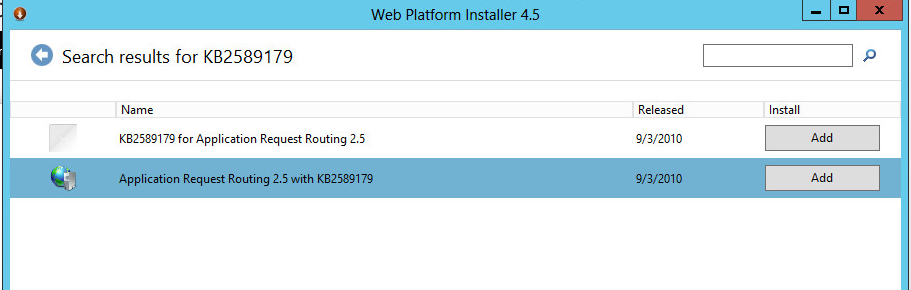
Once installed, you will be presented with the WebPI 4.5 Application window, here you can search for KB2589179" which will display the Application Request Routing 2.5. Select and click Add then Install.


After installation we can start the configuration of IIS to support Lync 2013. First close IIS Manager and reopen, you will now notice "Server Farms" option under Sites.


Right click on Server Farms, and select Create Server Farm...


Name your Server Farm (I used the External FQDN of my Lync web service)


Next specify the FQDN of your Enterprise Pool or Standard Edition Lync Server. Also drop down "Advanced Settings..." and change the default ports to 8080 and 4443 (which are our External Web Service ports). And click Finish


After clicking Finish you will be prompted to create the Rewrite Rules, click Yes.


Now your server farm is created with either your Enterprise Pool or Standard Edition Server defined. Next we will make some configuration changes to the Server Farm


Under Caching, disable the disk cache.

Specifically for Lync External web services, under Proxy, change the time-out to 200 seconds. This prevents the Lync Web App from experiencing disconnecting and reconnecting unexpectedly.

Under Routing Rules, disable the SSL offloading option.

Now we are going to configure the URL Rewrite rules. This is similar to what TMG did in rewriting the external meet/dialin/ext urls internally to your Lync Front End Servers.

Click the Root (Server Name) in IIS, and in the IIS settings click "URL Rewrite"


You will see 2 Rewrite rules already created, double click on the ARR_Name_loadbalance_SSL Rule.


The following changes need to be made.

The Pattern needs to be changed to (.*), Using: changed to Regular Expression and Action Properties changed from http:// to https://


Apply your Rewrite rule changes, and test. Now you should be able to open https://meet.domain.com externally (or by HOST record change meet/dialin/ext to external IP of IIS Server) and get to your Lync 2013 external services.


Notice the ping to the external (10.180.213.200) IP Address as shown above, and that I cannot even ping the Standard Edition Front End Server.

Thank you for reading.

Monday, 17 June 2013

Lync 2013 Standard Edition Pool Pairing Failed - "Cannot find any suitable disks for database files"

During a deployment I configured Pool Pairing for 2 Standard Edition Front-Ends. One of the Standard Edition servers was the primary pool for all users, with another Standard Edition server in the DR site.

After enabling Pool Pairing in the Topology


And confirming the 1:1 Pool Pair.


We publish the Topology. We immediately received the following error.


Back into the topology builder to try and reinstall the failed database configuration.


Instead of clicking next to "Automatically determine database file location" click Advanced

And select "Use SQL Server instance defaults". When configuring a Standard Edition Front-End server SQL instance defaults are using when the databases are installed. Why the install database was failing using automatic detection settings. We couldn't find an appropriate answer and are still investigating.

UPDATE: After some additional investgation found that the Standard Edition Servers had aprox 65GB disk space free. As per the Microsoft KB Article

Installing a Lync Database will fail if the server has less then 72GB Free disk space.


After selecting "Use Default instance defaults" click OK, then next to proceed with the database installation. And Success!


After installing the database on the backup pool, continued steps configuring Pool Pairing continued.


Sunday, 19 May 2013

Lync Online Certificate Update - June 1st 2013

This has been a crazy/busy start to the 2013 year. I do apologies to everyone that reads my blog I have had 0 time to post any migration articles. But will try to get back into it very shortly.

But here is an interesting article that was I was pointed to by some folks at Microsoft here in Canada.

My team and I have been doing alot of work with Office 365 Wave 15. Migrations, co-existence, hybrid with Lync on-premises. And was advised that Lync Online is going to be changing their certificates as of June 1st 2013.

I wont post about the changes, as they can be found here,

http://blogs.technet.com/b/nexthop/archive/2013/05/13/action-needed-lync-online-certificate-update.aspx


Long story short from the article, you will need to download the Baltimore Root certificate if you do not use Windows Update on a regular biases, or you have security policies in place that do not allow for all trusted root certificate authority certificates to be stored on your servers.

You can download the root certificate here.

https://cacert.omniroot.com/bc2025.crt

NOTE: This root certificate will need to be installed on every server that will come in contact with Lync Online.

Steps to install

Step 1: Download and Save the crt file above.


Step 2: Install Certificate into Trusted Root Certificate Store

Open, MMC (Start -> Run, type mmc)

Add the Certificates Snap in


 Select "Computer" in the manage certificates window.


Select Local Computer, then click Finish


Once the Certificates Snap-in is loaded, expand Certificates (Local Computer), Trusted Root Certification Authorities then Certificates. Right click Certificates, All Tasks and Import.


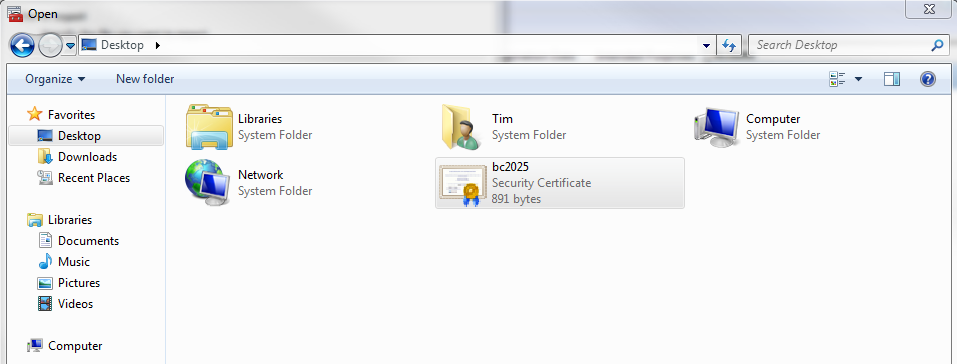
Click Next, Browse to the file that you downloaded above.


Click Next and Finish, you should receive a message that the import was successful.

To confirm check the list of root certificates to see if Baltimore CyberTrust Root is installed.


And there we have it. If you do not download specific updates, or have company regulations against storing specific certificates, this certificate needs to be installed by June 1st 2013 or any federation/hybrid/co-existence you have with Lync Online will stop working.
Thank you for reading, I hope I can start writing my co-existence articles very soon.